 button to display the Firm ID screen.
 The You've Got Claims Interface allows for firms to have multiple YGC Firm IDs. On the Firm ID screen, you can enter multiple Firm Ids or can set the addresses for your firm in different states that use the same Firm ID
From the Management Tab Screen, click the button to display the Firm ID screen.
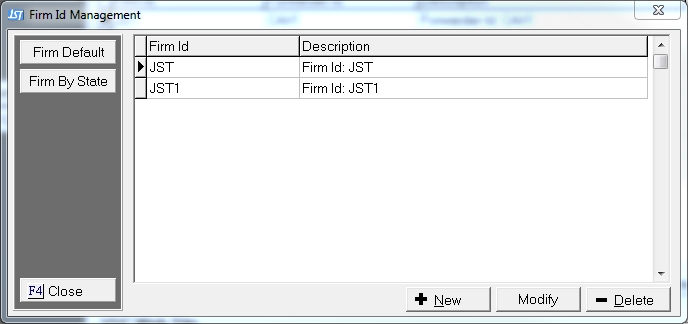
Click the  button to display the New Firm ID Screen.
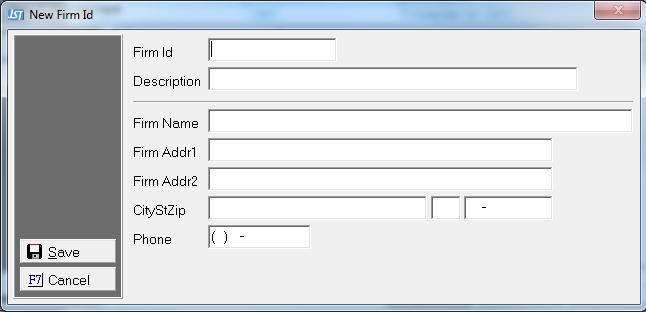
Enter your newly assigned Firm ID provided by You've Got Claims.
Note: JST is not involved with the assignment of Firm IDs. If your firm needs a new ID, please contact You've Got Claims directly.
Enter the following information:
The address information enter here will be used for account with this Firm ID unless overridden by the Firm By State option below.
Click the  button to save the new Firm ID.
For Firm ID's with no address information (Could have been added years before this address options was available), you can set the Firm Default Address instead of having to modify all your Firm IDs.
Click the  button to display the New Firm ID screen.
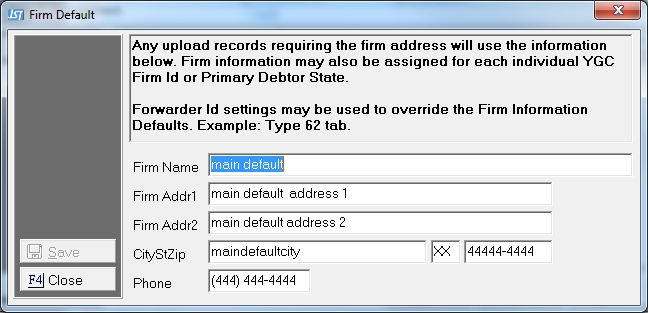
The information on this screen will be the address information sent in YGC records that require the Firm Demographics.
Enter the following information:
Click the button to save the defaults.
If your firm does business in more than one state, you can add different firm addresses based on the Primary Debtor/Consumer's state. Click the  button to view the Firm by State Screen.
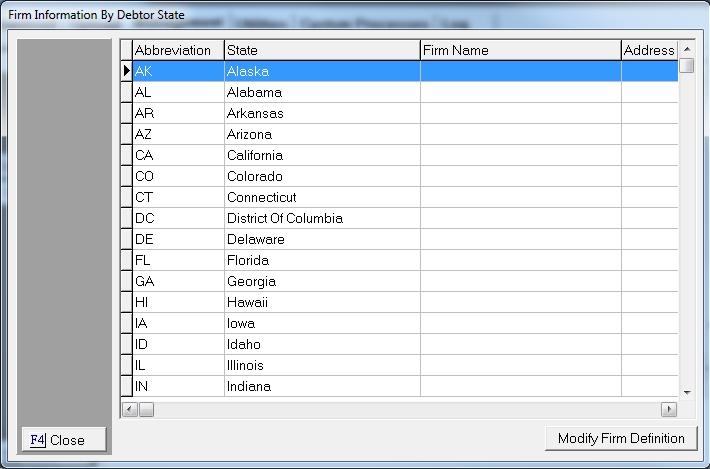
Highlight the State for which you need to setup a different Firm Address. Click the  button to display the Modify Firm Information Screen.
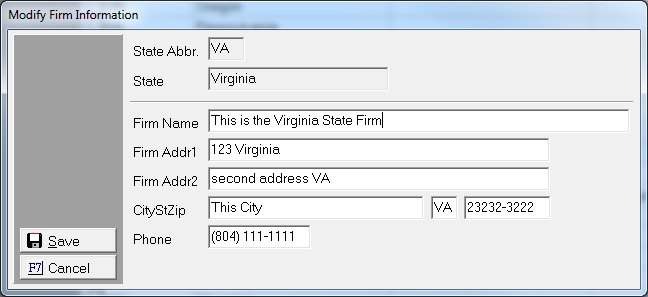
For any account whose Primary Debtor/Consumer's has this State, the entered firm address will be sent in any YGC record requiring the Firm Address.
Please enter the following:
Click the button to save the address for this state. Enter any other addresses that you might have. For States that are undefined the Firm Default address will be used.